Mix Analyzer is already useful when you upload one track and get structured feedback. But the compare feature is where the workflow becomes much more practical.
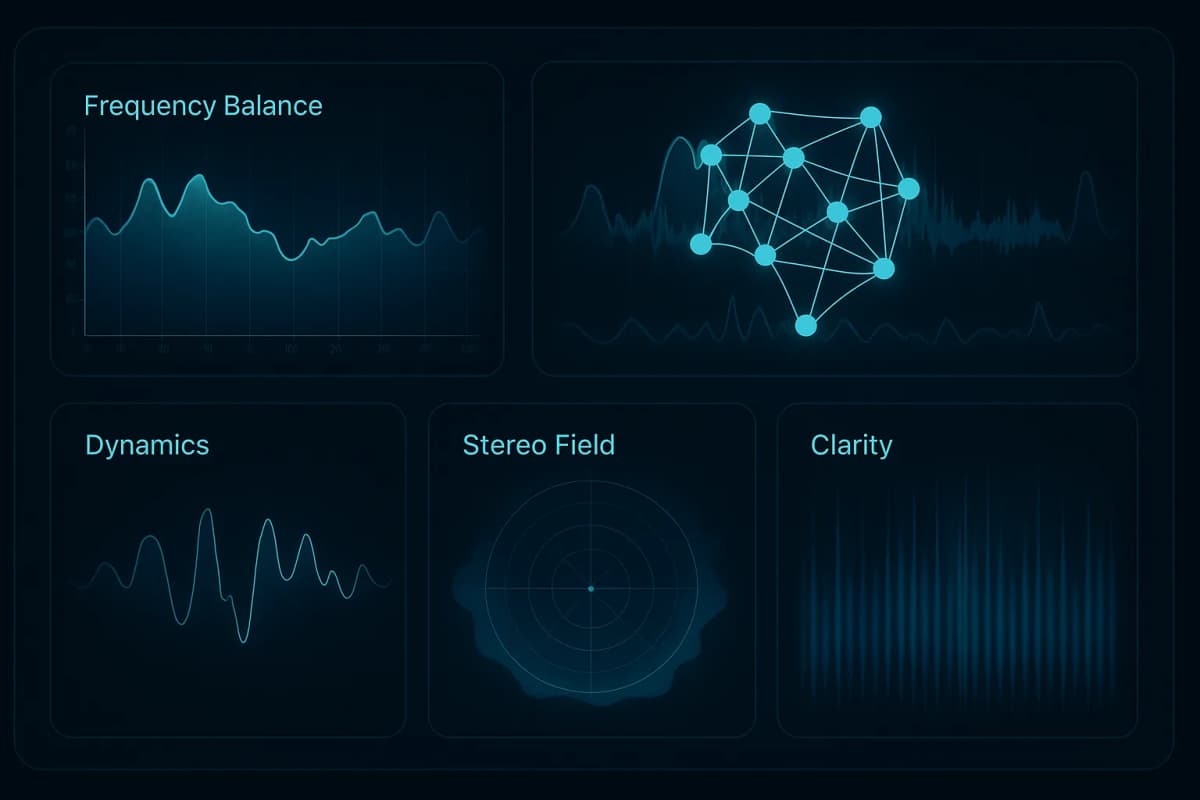
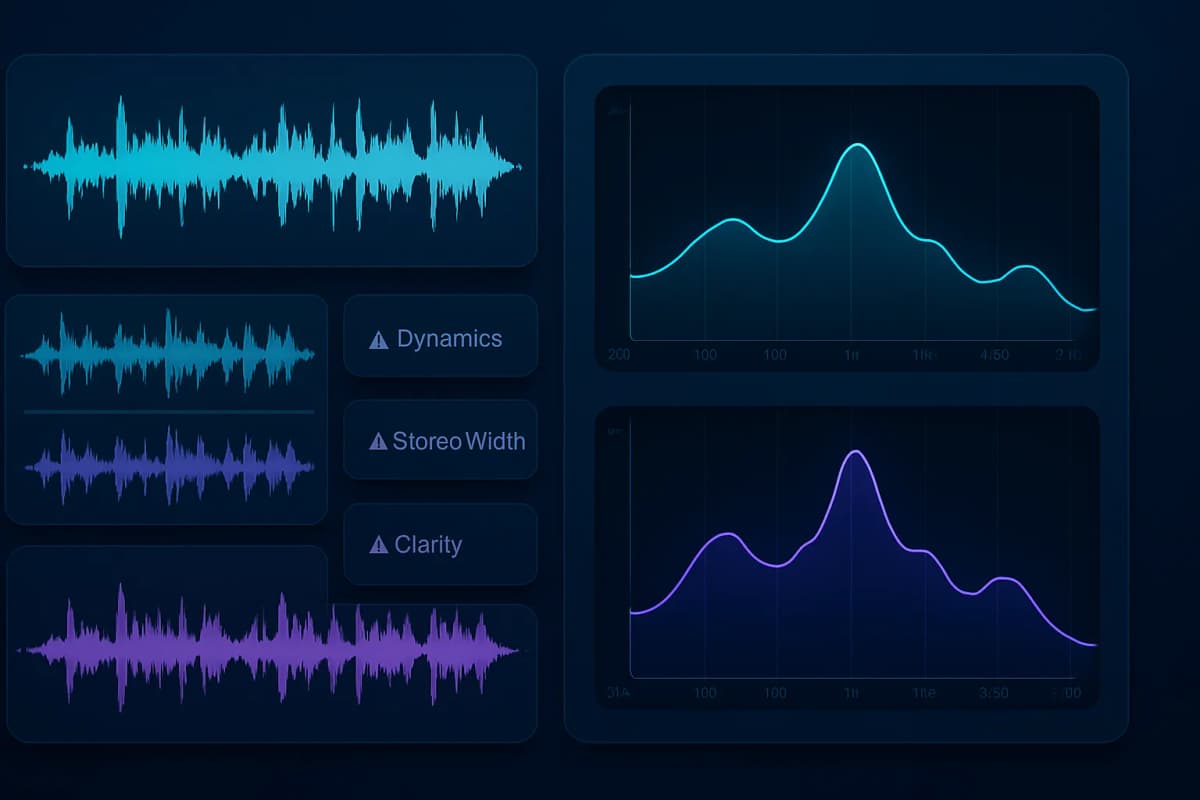
Compare in Mix Analyzer is the side-by-side view where Track B becomes the goal. You pick two analyzed tracks and see how far apart they are on frequency balance, dynamics, stereo width, phase, clarity, transients, and mono compatibility. You also get text-level comparisons for genre, mood, key, and tempo.
In my experience building and testing audio workflows, Mix Analyzer becomes much more valuable the moment you stop using it as a one-track report and start using it as a decision tool between two versions. It is easy to hear that something feels wrong. It is harder to see whether the problem is low-end balance, stereo spread, transient energy, or the way the mix folds toward mono. Compare gives you a cleaner way to turn vague impressions into a more concrete next step.
The current beta is especially useful if you already work with references, alternate versions, or revision passes. Instead of guessing what changed, you can line two tracks up and check the delta. That does not replace listening. It makes listening more productive.
Here are five practical ways I would use compare inside Mix Analyzer.
1. Use Compare in Mix Analyzer against a real reference track
This is the most obvious use case, and probably the best one.
If you have a commercial song in the same lane as your track, upload both, set the reference as Track B, and use compare to see where your mix is drifting. Right now the feature is built around exactly that idea: Track B is the goal, and the interface shows how far Track A sits above or below it.
That helps in ways a single analysis pass cannot. You are no longer asking, Is my stereo width healthy in a vacuum? You are asking, Is my stereo width too narrow or too wide compared with the result I actually want? The same applies to dynamics, clarity, transients, and mono compatibility.
This is where Mix Analyzer compare becomes more than a dashboard. It becomes a decision filter. If the low end feels muddy, the frequency balance row can confirm whether the issue is real. If the chorus feels smaller than the record you are chasing, the stereo and transient rows give you a more technical read on what changed. If your mix sounds exciting alone but collapses next to the goal, Mix Analyzer exposes the gap fast.
If you are still shaping the rest of your chain, pair this with Mix Analyzer: AI Audio Analysis for Better Mixes and Best VST Plugins for 2026 so you can move from problem detection to better tool choices.
2. Compare mixes between revision A and revision B before you send anything out
A lot of revisions sound better because you spent more time, not because the mix actually improved.
That is why compare is strong for internal A/B checks. Bounce your current version, bounce the new revision, and compare mixes before you send the update to a client, vocalist, or collaborator. This is especially helpful after bigger moves like bus compression changes, vocal rides, low-end cleanup, or widening decisions.
With a normal A/B listen, your brain can trick you. Louder often feels better. Newer often feels better. A more exciting top end can feel like progress even when mono compatibility got worse or the dynamics got flatter. Mix Analyzer gives you a more neutral checkpoint by showing both overall scores and module-level differences side by side.
It is not there to tell you which version to keep. It is there to show what changed. That sounds small, but it is a major workflow win. If revision B gained clarity but lost punch, that is a much better conversation than saying, I think this one feels a bit cleaner but maybe less alive.
If you regularly send revisions, compare can become your last sanity check before delivery. It is a faster way to avoid sending a version that accidentally solved one problem by creating two new ones.
3. Compare mixes before and after mastering moves
Another strong use case is pre-master versus master candidate.
This is where the compare feature helps you separate what mastering improved from what mastering may have overdone. If you line up the pre-master against the mastered version, you can see how the changes affected dynamics, clarity, stereo width, phase behavior, and mono compatibility. That is much more useful than evaluating the final file only on loudness or hype.
For example, a master can feel more impressive at first listen because it is louder and denser. But Mix Analyzer compare might show that the dynamic range moved too far, the transient score dropped, or the mono compatibility got weaker than expected. In other words, the master may sound bigger at first but translate worse where it matters.
That is also why compare is useful when you are deciding whether a problem still belongs in the mix. If the pre-master already has balance issues, clarity problems, or narrow stereo movement, mastering is not the right place to rescue everything. Mix Analyzer makes that more obvious.
This is a good place to revisit Music Mastering: DIY vs. AI vs. Pro, The Difference Between Mixing And Mastering, and Perceived Loudness Explained if you want better context around what should change at each stage.
4. Use Compare in Mix Analyzer to choose between creative mix directions
Compare is not only for technical matching. It is also useful when you are deciding between two creative directions.
Maybe you printed a vocal-up version and a more instrumental version. Maybe you tried a cleaner mix bus and a more saturated one. Maybe one version has a wider chorus and another keeps the center more focused. Those are creative choices, but each one leaves technical fingerprints behind.
This is where compare gets interesting. You can line the versions up and see what each decision did to the measurable side of the mix. Did the wider chorus also weaken phase score? Did the more saturated version improve excitement but reduce clarity? Did the vocal-forward mix help translation while pushing the dynamics into a less natural place?
That does not mean the app should make the final call for you. Taste still wins. But Mix Analyzer helps you understand the trade-off. Instead of deciding only from memory, you can compare mixes with real deltas in front of you and keep the version that supports the song instead of the version that simply feels newest.
This is one of the easiest ways to stop endless tweaking. When you can see what a creative move changed, it becomes much easier to commit. If vocals are the main trade-off, Best Vocal Tuner Plugins for 2026 is another useful companion read.
5. Compare mixes when you are working outside your usual genre
Genre context is one of the underrated parts of the compare view.
The page does not only show score bars. It also compares genre, mood, key, and tempo. That is useful when you are producing outside your comfort zone or trying to understand why a track feels stylistically off even when the raw engineering looks decent.
Say you mostly work on darker, denser material and now you are mixing something more open and bright. Or maybe you usually live in modern loud productions and now you are handling something more organic. Mix Analyzer helps you frame the gap between what you instinctively built and what the target lane actually sounds like.
The compare page will not magically make the song fit the genre. But it can show whether your track is sitting in the wrong place relative to the reference. If the mood feels different, the tempo relationship feels off, or the overall mix profile looks unlike the target, you have a clearer starting point for revision.
That is often the hardest part of cross-genre work: not knowing which difference matters and which one is just taste. Compare makes that problem smaller.
If you want to sharpen your technical foundation before making those decisions, Audio Signal Levels Explained, Best Limiter Plugin, and Future of Music Plugins are strong companion reads.
What Compare in Mix Analyzer shows today
Right now, the compare feature is in beta, but it is already specific enough to be useful.
Today it gives you:
You do need a free account to use the real compare flow, and you need at least two analyzed tracks in your account. Guests can preview the feature, but the full workflow is tied to your own library.
According to the current compare page, the next version is planned to go deeper with per-section explanations, more actionable advice, and suggestions for EQ, dynamics, and spatial moves based on the gap between both tracks. That is a good direction because it keeps the product practical instead of turning it into another passive dashboard.
FAQ
Do I need two uploads to use compare?
Yes. Compare in Mix Analyzer works on analyzed tracks, so you need at least two uploaded and processed songs in your account before the side-by-side view becomes useful.
Which things can I compare right now?
The current beta compares overall score plus frequency balance, dynamics, stereo width, phase, clarity, transients, and mono compatibility. It also shows text comparisons for genre, mood, key, and tempo.
Is compare meant to replace listening?
No. The point of compare is not to replace your ears. It is to make your ears more efficient by showing where two tracks differ before you start making new mix moves.
Final thoughts
Mix Analyzer becomes much more practical when you stop thinking of it as a one-track score and start using it as a comparison workflow. That is where the product starts helping with real production decisions: reference matching, revision control, mastering checks, creative A/B choices, and genre calibration.
If you want to hear a track less vaguely and fix it more deliberately, compare is one of the smartest places to start in Mix Analyzer.
Try it here: mixanalytic.com/compare.